Day -1: Essential Linux Commands for Beginners
Published
Many newcomers to Linux find the command line interface daunting, but understanding a few fundamental commands can greatly enhance your experience and productivity. Here are some essential commands to get you started:
1. ls — List Directory Contents
The ls command is used to list the contents of a directory. It provides a simple way to view files and folders within the current directory.
Example
ls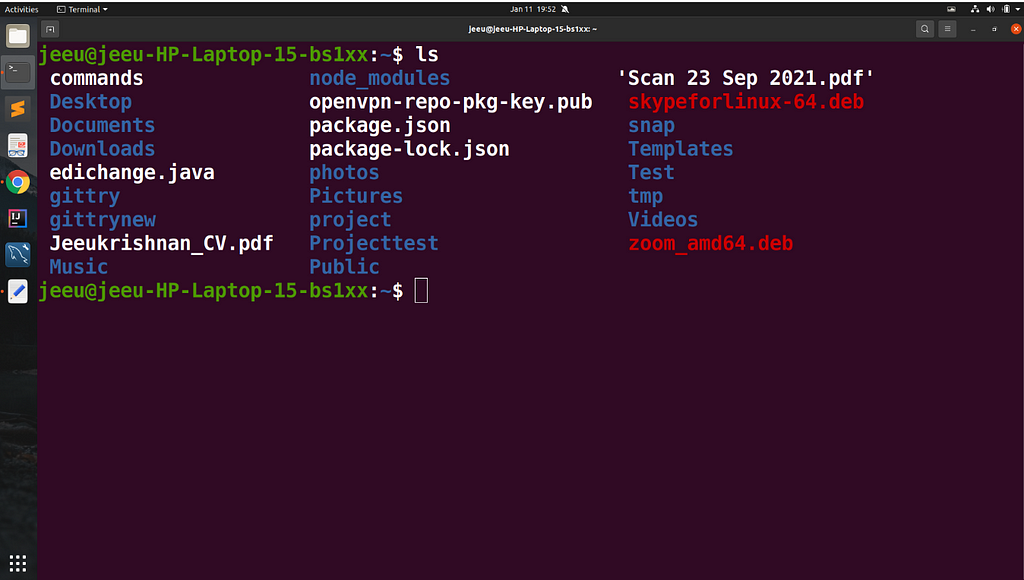
2. pwd — Print Working Directory
pwd stands for “print working directory.” It displays the full path of the current directory you’re working in.
Example:
pwd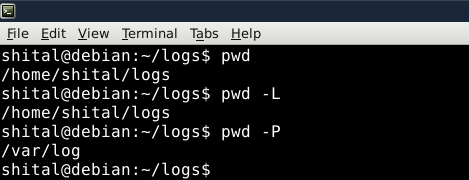
3. cd — Change Directory
The cd command allows you to navigate between directories. You can move to a specific directory by providing the path as an argument.
Example:
cd /path/to/directory
4. mkdir — Make Directory
Need to create a new directory? Use mkdir followed by the directory name to create a new folder.
Example:
mkdir new_folder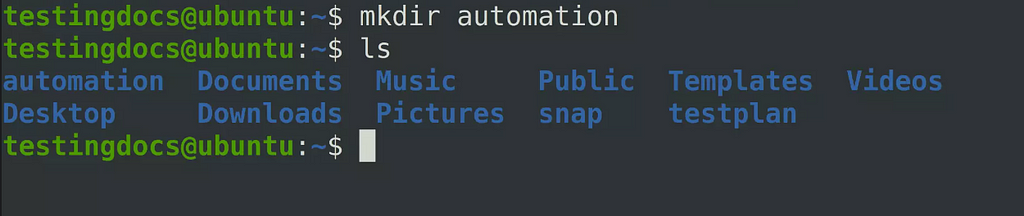
5. rmdir — Remove Directory
The rmdir command removes an empty directory. Be cautious, as it only works on directories that have no files inside.
Example:
rmdir empty_folder
6. touch — Create an Empty File
Creating an empty file is easy with the touch command. It can also update the access and modification times of existing files.
Example:
touch new_file.txt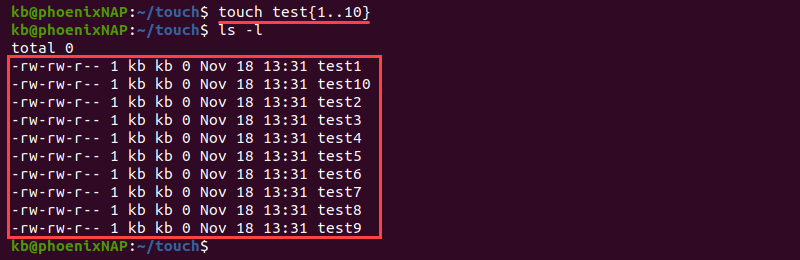
7. man — Display Manual Pages for Commands
The man command is your go-to tool for learning about other commands. It displays manual pages that explain how each command works.
Example:
man ls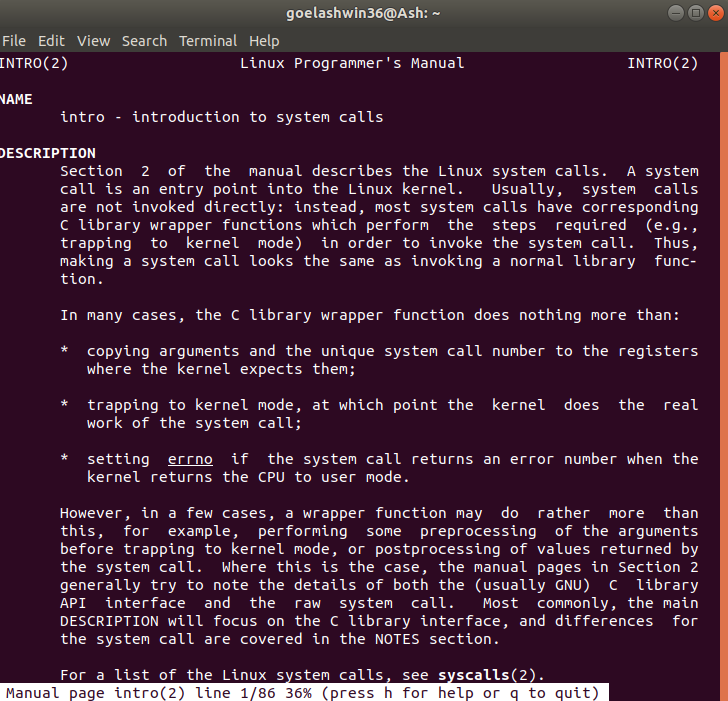
Learning these basic commands lays a solid foundation for navigating and interacting with the Linux operating system through the command line. Experiment with these commands to become more comfortable with the Linux terminal.
Stay tuned for more in-depth guides on these commands and further exploration of the Linux command line!
Originally published on Medium.
Ready to apply? Browse open roles on FzlOps · get daily alerts on WhatsApp above.